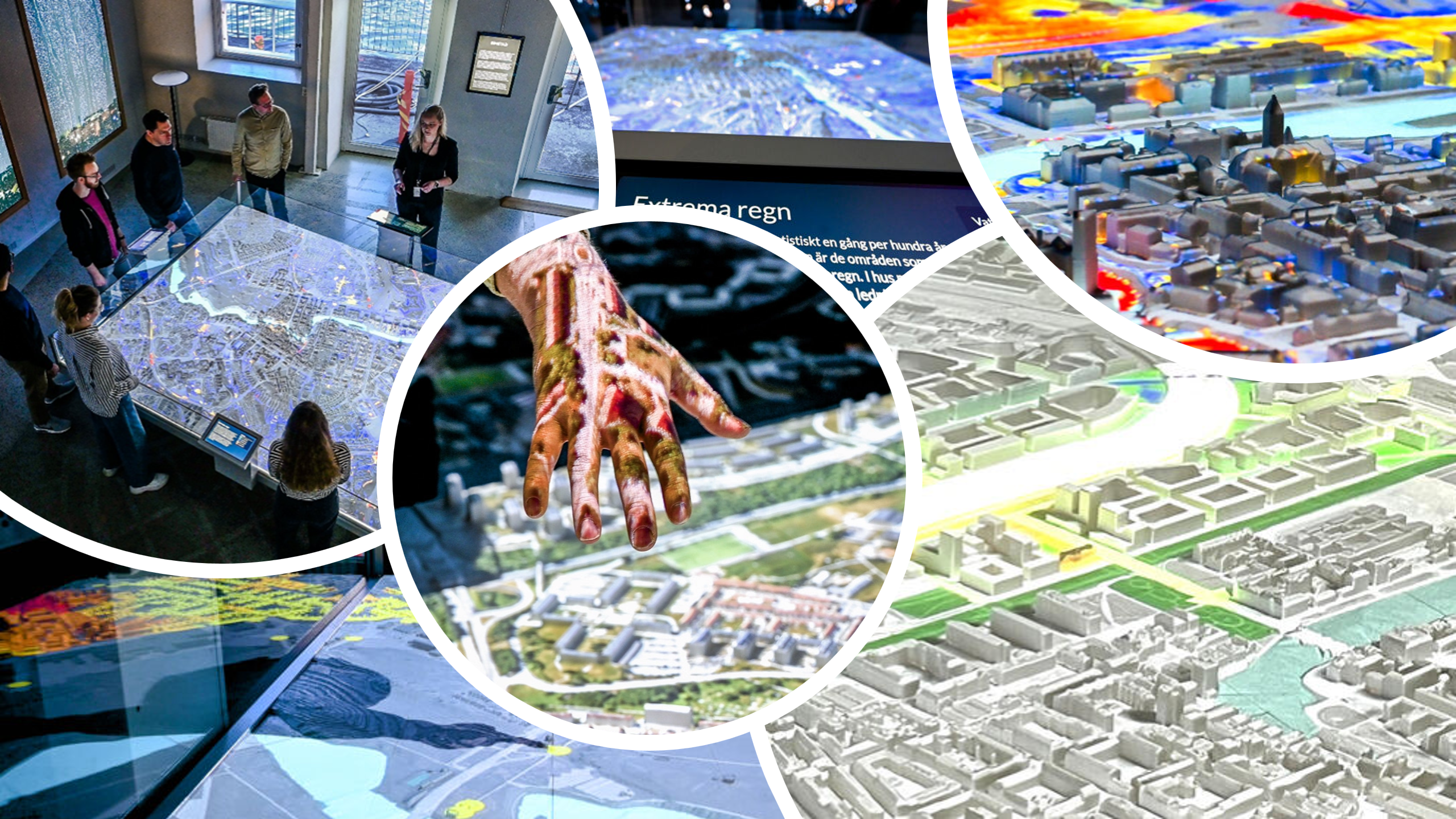
SimStad







Overview
Read about the protocol.
About SimStad.
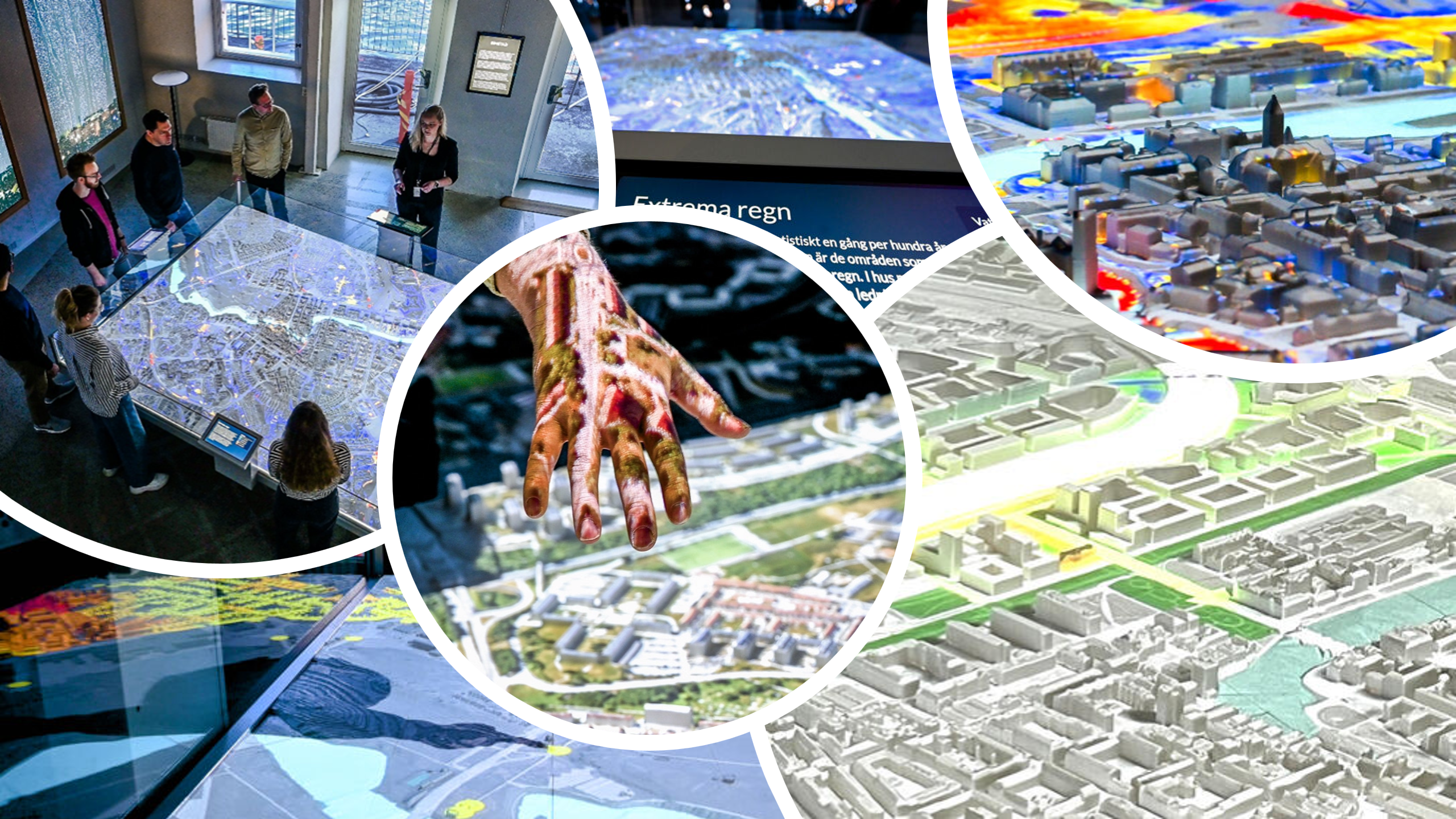
Simstad documentation
TODO (innehåll)
- Overview
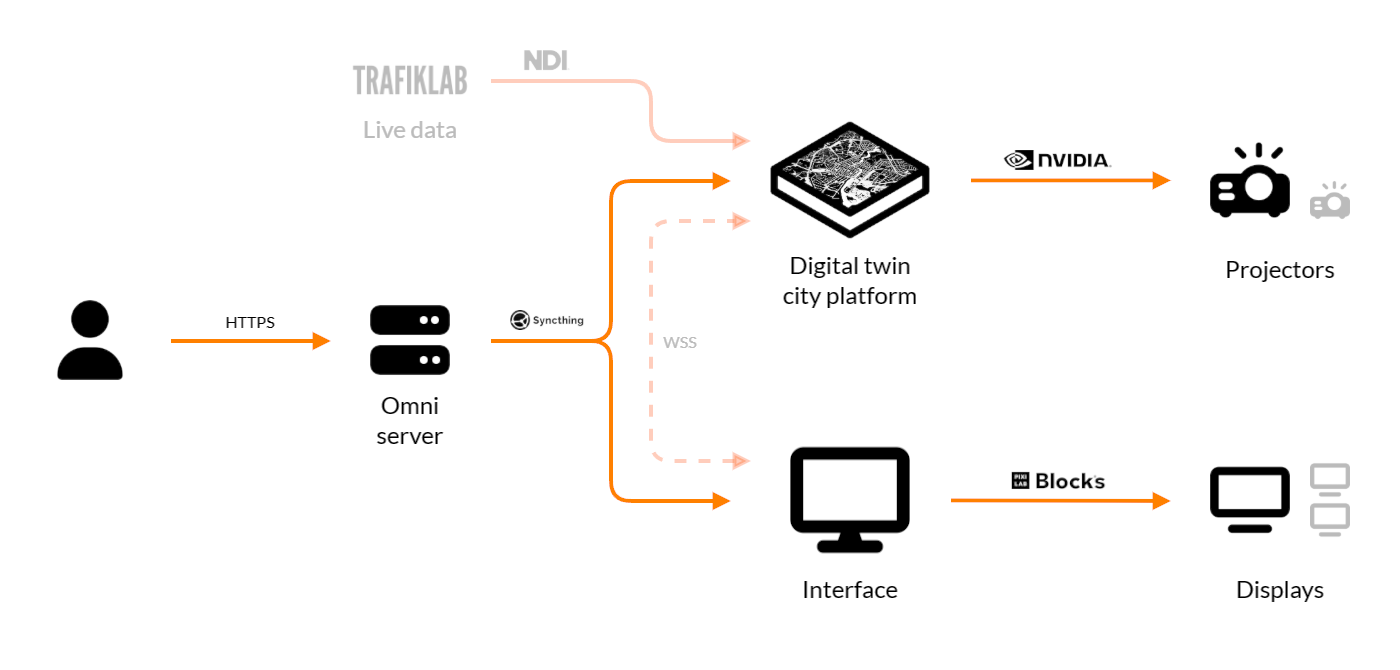
- Overview schematic of all the hardware
- Raster images, videos
- Image sizes that fit the 3D model
- Pictures of the final result
The Simstad application
The Simstad installation is based on two parts.
- The Unreal Engine application that shows 2D datasets projected on a 3D environment, simulating light etc
- The web interface for controlling which datasets are shown
These two applications communicate via the Omni interface, sending messages over a web socket with a defined protocol.
Visual City Platform
Digitala tvillingar till hela Sverige Visual City Platform är en ny banbrytande storsatsning inom digitala tvillingar av städer, lanserat av Visual Sweden. Projektet har sin grund i det framgångsrika Simstad-projektet, där forskare på Linköpings universitet tagit fram ett neuralt nätverk för att skapa en digital tvilling av Norrköping. Syftet med Visual City Platform är att förse Sveriges städer med LiU-forskarnas spetskompetens inom visualisering och bildanalys, samt en mängd data och metoder, för att städerna sedan självständigt ska kunna skapa egna digitala tvillingar. Något som i förlängningen kan ge en rad positiva effekter för både samhället och näringslivet. En central del av projektet är användningen av AI-baserade metoder, genom djupa neurala nätverk, syntes och bildanalys. Detta gör slutresultatet starkare och gör att vissa delar av processen kan automatiseras, som till exempel kartering och 3D-rekonstruktion. Arbetet inom Visual Sweden City Platform kan komma att få en avgörande roll i utvecklingen av smarta och hållbara städer i Sverige. Projektet pågår 2024-2026 och finansieras av FORMAS och Smart built environment, i samarbete med Linköpings universitet och Visual Sweden. Andra samarbetspartners är Maxar, VTI och kommunerna Malmö, Norrköping och Linköping.
3D print
Overview
Packaged installation setup
You need to have a packaged version of the Unreal Engine application on the projector computer. You also need a folder with the Datasets accessible on that computer. The application is run with command line parameters using a bash script. You need to add your web token in the .env file to allow connection to the Omni system
Omni, networking, and data management
How to use and connect – link to Omni guide on ImmVis. (Erik does not want us to use LiU Omni when shipping, so we’ll have to package Omni in the bundle and explain how to set that up locally)
Protocol. Link to Protocol Wikipedia, or move that to ImmVis.
Syncthing
Syncthing allows us to set up folders on exhibition computers to sync all images that SimStad uses. See the Omni documentation on how to set up Syncthing on a Linux webserver.
Install Syncthing on Windows
Download Syncthing. Install and set it to run in the background. Open a browser and go to 127.0.0.1:8384. Add remote device and paste the Omni Syncthing identification code. Click the new folder, click edit > Advanced > Folder Type > Receive Only.
Blocks and displays
Describe Blocks and displays. How to set them up to sync with the interface and how to add content to them.